

We restrict permissions to our Melonly to our Staff Team
Moderation Panel
Melonly provides a Web-Based Moderation Panel for easy moderation and shift management, this guide will be based upon that panel. You may access it here. Once selecting ‘Maple Ontario Roleplay’ on the Melonly Dashboard, you will be met with a page depicted below: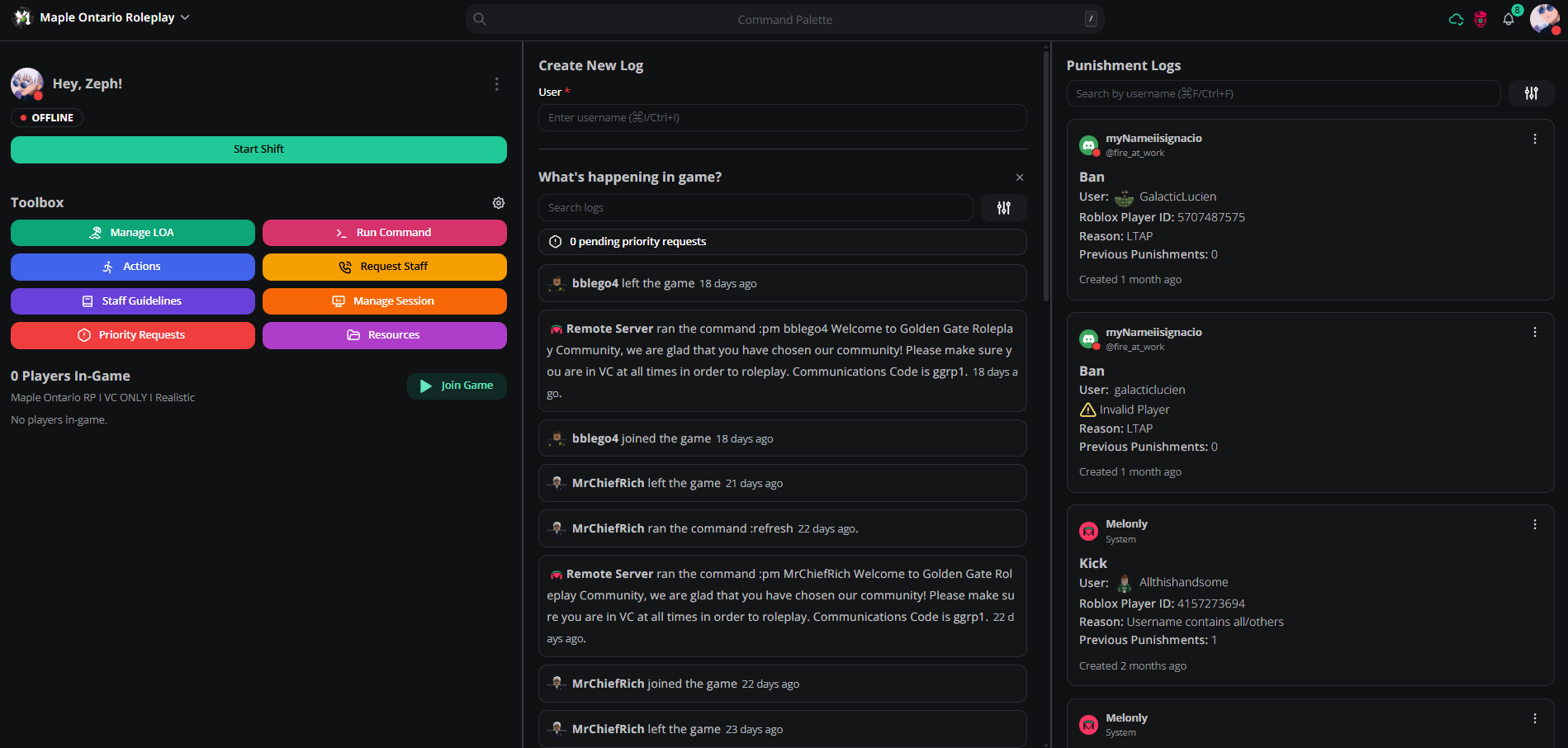
Issuing a Moderation
When entering the panel, in the middle of the page you will find ‘Create new log’, you will use this to issue a moderation. When you are in a Mod Scene and you intent to moderate a user, you must fill out all fields of the moderation form. This includes, the Username of the User, Punishment you intend to issue, reason for said punishment, and a Description, Melonly will consider the description as optional, however you MUST place a description on every moderation.Starting your Shift
Upon entering the panel, you will see on the left side of the page, your Shift Management Panel, this is where you will start and end your breaks/shifts. Starting your shift is simple, just click the ‘Start Shift’ button, then select a Shift Type. (Reminder: To use 50/50, you must have the50/50 Perms role in our Discord Server)
Toolbox
On the panel, you will see a ‘Toolbox’ section, this is where you can find the buttons to manage your LOA, run commands via VSM (Virtual Server Management), Actions, Staff Requests, and Priority Requests.ER:LC Member Checks
ER:LC Member Checks are where you check to see if a member is within our Discord and in a VC, you can perform one of these by doing/erlc membercheck in Staff Commands. This will give you a list of people who are in Discord, and who aren’t. Then, teleport to the players who aren’t in Discord, and get them in. Don’t kick members immediately, only kick them if they refuse to join Discord.